
- 1. 3D-моделювання: як уникнути помилок
- 2. Помилка №1 – Недотримання вимог до роботи з матеріалами
- 3. Помилка №2 – Недотримання технології друку
- 4. Помилка №3 – Недотримання товщини стінок
- 5. Помилка №4 – Недотримання роздільної здатності файлу
- 6. Помилка №5 – Недотримання керівних принципів програмного забезпечення
3D-моделювання: як уникнути помилок
Ми знаємо, що моделювання для 3D друку – заняття не з легких. У 3D моделюванні, як і в 3D друці, немає одного розміру, який підходив би для всіх ситуацій. У нас у всіх різне програмне забезпечення, ми друкуємо різними матеріалами і не тільки використовуємо різні принтери, але й технології друку. Тому цілком нормально, що ви не з першого разу зможете створити ідеальну 3D модель для 3D друку. Ось чому ми тут привели 5 помилок, яких необхідно уникати при розробці моделі.
Помилка №1 – Недотримання вимог до роботи з матеріалами
Всі матеріали для друку відрізняються один від одного. Матеріал може бути крихким або міцним, гнучким або твердим, гладким або шорстким, важким або легким і так далі. В ідеалі об'єкт повинен розроблятися під конкретний матеріал. Наприклад, якщо ви знаєте, що 3D модель буде надрукована з кераміки, то необхідно дотримуватися конкретних рекомендацій для дизайну з цього матеріалу (це, наприклад, підтримка навислих частин, зміцнення виступаючих елементів, згладжування кутів і так далі). Вибір матеріалів для друку передбачає деякі з основних принципів проєктування, які вам потрібно враховувати.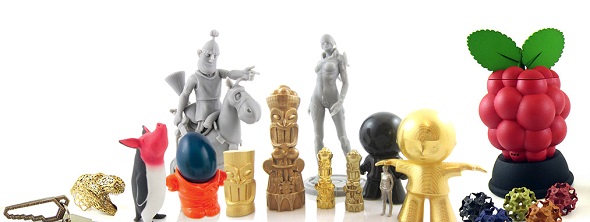
Кожен матеріал для 3D друку має свої характеристики. Обов'язково прочитайте керівництво по проєктуванню для матеріалу, який ви обрали.
Рішення: Дотримання правил проєктування для конкретного матеріалу має важливе значення для успішного друку. В ідеалі ви повинні прочитати керівництво по проєктуванню, перш ніж почати роботу над вашою моделлю.
Помилка №2 – Недотримання технології друку
Відрізняються не тільки основні хімічні характеристики матеріалів для друку, але й технології, які використовуються для друку кожного з цих матеріалів.
Для прикладу можна привести взаємоз'єднувані частини. Використовуючи такі матеріали, як ABS, поліамід або алюмід, ви можете надрукувати взаємоз'єднувані частини, в той час, як з інших матеріалів, таких як золото, срібло, бронза або смола, це зробити неможливо. Причина не в самому матеріалі, а в технології, яка використовується для друку кожного з них.
Для ABS ми використовуємо моделювання методом пошарового накладання розплавленої полімерної нитки (на основі ниток) з додатковою насадкою і матеріалами для підтримки; для поліаміду, алюміду і каучукоподібного матеріалу ми використовуємо вибіркове лазерне спікання (на основі порошку); для дорогоцінних металів — лиття за виплавлюваними моделями, а для смоли — стереолітографію (на основі рідкого полімеру).
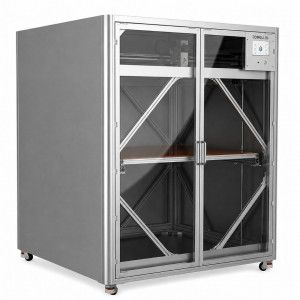
Існує багато різних технологій 3D друку. На рисунку представлений принтер “Mammoth“ від компанії Materialise, що працює з технологією стереолітографії.
Це може здатися дивним, але ви повинні пам'ятати наступне: ми не можемо припускати, що нержавіюча сталь і срібло матимуть аналогічні вимоги просто тому, що обидва ці матеріали є металами. Вони друкуються з використанням різних технологій, і тому деякі конструктивні особливості будуть відрізнятися. Тим не менше, матеріали, які використовують ту ж технологію, такі як золото, срібло, бронза, мідь (лиття за виплавлюваними моделями), швидше за все, мають схожі вимоги до проєктування.
Рішення: Перш ніж почати проєктування, необхідно дізнатися всі характеристики матеріалів. Крім того, майте на увазі, що максимальні розміри друку відрізняються залежно від використання різних принтерів і друкованих технологій.
Помилка №3 – Недотримання товщини стінок
Навіть якщо інформація про товщину стінок доступна в керівництві, про яке згадувалося вище, варто ще раз підкреслити важливість цього моменту.
Проблеми, пов'язані з товщиною стінки, є на сьогодні найбільш поширеними причинами того, чому деякі 3D моделі не друкуються належним чином. В деяких випадках стінки занадто тонкі. Це не дозволяє деталям моделі друкуватися, або ж вони виходять дуже крихкими і можуть легко зламатися. А ось занадто товсті стінки генерують багато внутрішньої напруги і можуть призвести до тріщин або навіть розлому.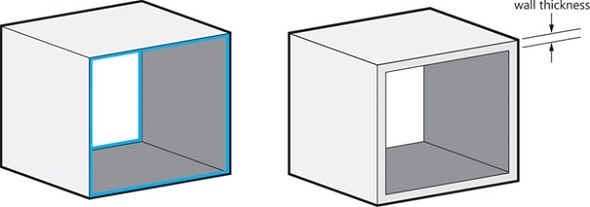
Правильна товщина стінок має вирішальне значення для успішного друку.
Рішення: По-перше, прочитайте інформацію про те, як отримати ідеальну товщину стінки для 3D моделі.Потім перейдіть до керівництва по проєктуванню для обраного вами матеріалу і дотримуйтесь всіх вказівок.
Помилка №4 – Недотримання роздільної здатності файлу
Прочитали керівництво з проєктування? Знаєте свій матеріал? Товщина стінки в порядку? Чудово, а тепер є ще один момент, на який варто звернути увагу: роздільна здатність файлу.
Для 3D друку найбільш поширеним форматом файлу є STL (стандартна трикутна мова). Це означає, що математична мова, на якій написаний ваш 3D дизайн, повинна бути переведена на більш просту мову, яку ваш 3D принтер зможе зрозуміти. Більшість програмного забезпечення для 3D моделювання має опцію експорту вашого дизайну в STL файл і вибору потрібної роздільної здатності. Ось візуальне представлення різних роздільних здатностей файлів — від надзвичайно високої (зліва) до дуже низької (справа):
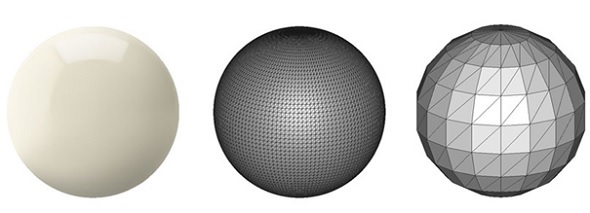
Вибір правильної роздільної здатності для вашого файлу гарантує хорошу якість друку. Занадто низьке або занадто високе розширення може викликати наступні проблеми:
STL файл з низькою роздільною здатністю: важливо знати, що експорт низької якості не зможе забезпечити вам хороший друк. Низька роздільна здатність означає, що трикутники у вашому STL файлі великі, і поверхня друку не буде гладкою. Це призведе до дещо «нерівної» друку.
STL файл з дуже високою роздільною здатністю: файл з такою роздільною здатністю занадто великий, тому іноді його не можливо надрукувати. Він також може містити крайній ступінь деталізації, яку 3D принтери просто не можуть відтворити. При завантаженні на сайт для друку ми рекомендуємо вибирати розмір файлу до 100 Мб.
Рішення: Більшість програмного забезпечення для 3D моделювання при експорті файлу пропонує визначити чутливість. Чутливість представляє собою максимальну відстань між початковою формою і STL сіткою при експорті. Ми рекомендуємо вибирати 0,01 мм. Експорт з чутливістю менше 0,01 мм не має сенсу, тому що 3D принтери не можуть друкувати на цьому рівні деталізації. При експорті з чутливістю більше 0,01 мм можуть бути видні трикутники при 3D друку.
Помилка №5 – Недотримання керівних принципів програмного забезпечення
3D-моделювання. Деякі з них були призначені для створення 3D відбитків, інші в основному використовуються 3D художниками, і їх проєкти вимагають додаткового редагування. Наприклад, товщина стінок в деяких програмах визначається автоматично, в той час як в інших її треба налаштовувати вручну.
Навіть якщо ви використовуєте програмне забезпечення для новачків, призначене виключно для 3D друку (наприклад, Tinkercad), створення порожнистої моделі може доставити труднощі. В цьому випадку вам може допомогти програмне забезпечення Meshmixer.
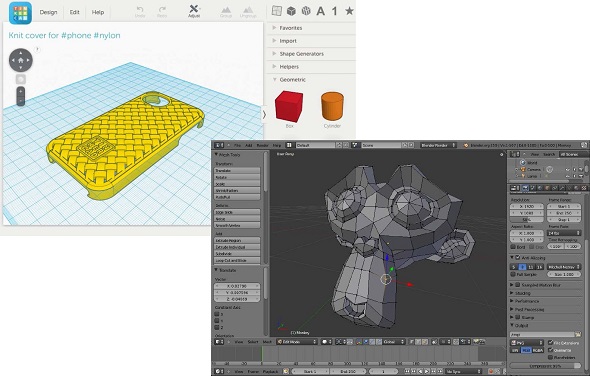
Різне програмне забезпечення, різні процедури підготовки файлу: Tinkercad (зліва) іBlender (справа).
Якщо ви використовуєте таке програмне забезпечення, як Blender (застосовується для 3D графіки і анімації), SketchUp(популярне серед архітекторів і масштабних моделістів) або ZBrush (використовується 3D художниками), необхідно буде провести подальшу підготовку файлу. Наприклад, залежно від програмного забезпечення, яке ви використовуєте, виникне необхідність зробити об'єкт водонепроникним, вказати товщину стінок або встановити розміри друку. Ще раз: кожне програмне забезпечення має свої відмінності.
Рішення: Прочитайте керівництво по програмному забезпеченню для перетворення моделі в 3D відбиток.Якщо ви не можете знайти його на офіційних сайтах програмного забезпечення, Google в допомогу.
При виборі програми для 3D моделювання можете скористатися інформацією з цієї статті. Якщо ви невпевнені, що у вас вийде зробити 3D модель, то замовте у нас 3D моделювання. А після того якви зробили (отримали, завантажили) тривимірну модель, яку хотіли, надрукуйте її самостійно абозамовте друк у нас.


Залишити коментар